Steps
Six steps to send the invite
Screens from Meta Business Suite, November 2026, with business names hidden. Meta moves buttons around from time to time, so if a label looks a little different, pick the closest match.
Open Meta Business Suite
Go to business.facebook.com and log in with the Facebook account that manages your Page. If you have more than one business, pick the right one from the menu at the top left.
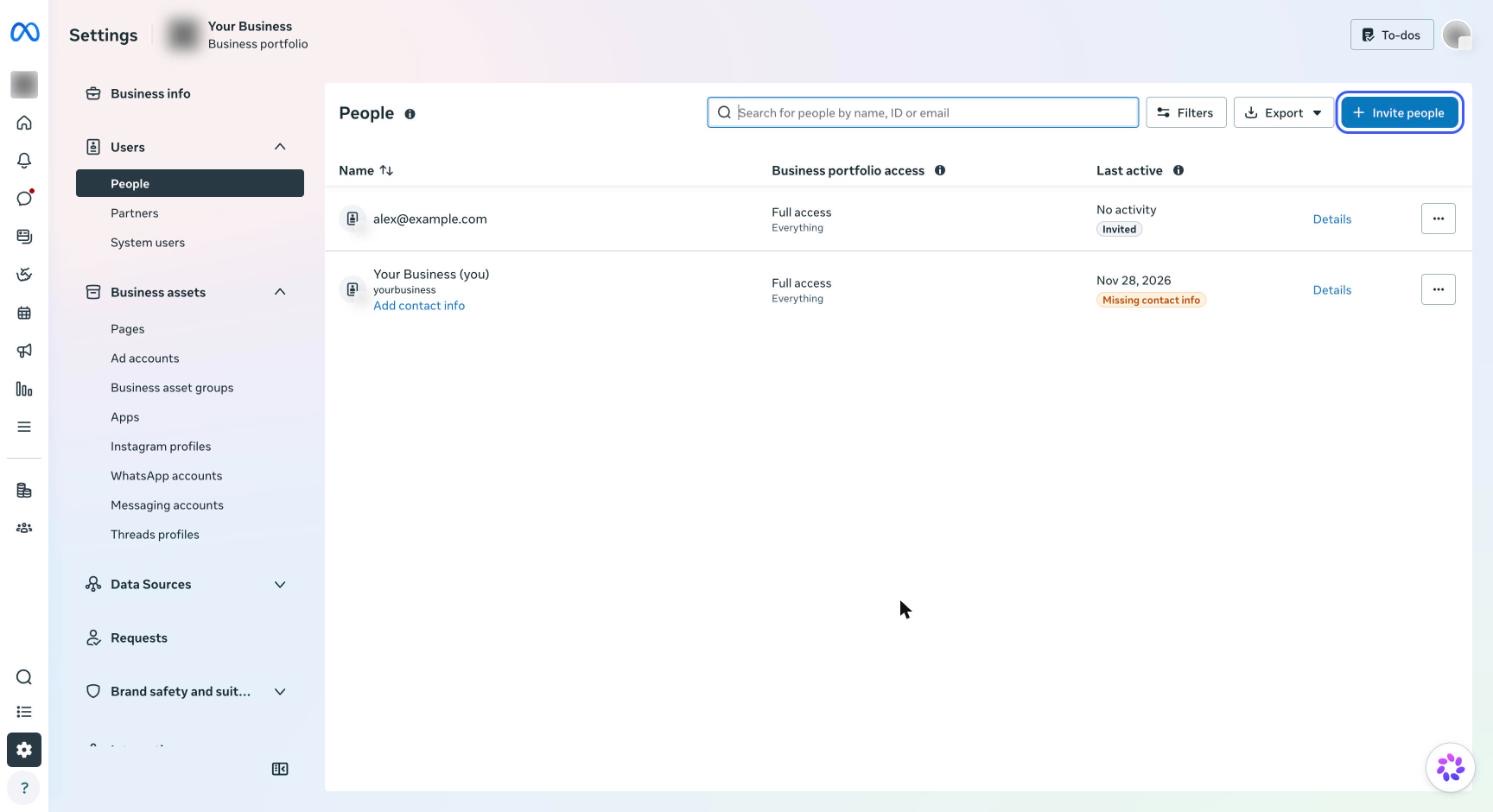
Go to Settings, then People
Click Settings (the gear icon) in the left menu. Under Users, open People. You'll see everyone who already has access.
 123
- 1Settings (gear icon)
- 2People, under Users
- 3Invite people
Can't see People? Your account doesn't have full access to the business portfolio. Ask whoever set it up to follow this guide, or to give you full access first.
Invite them by email
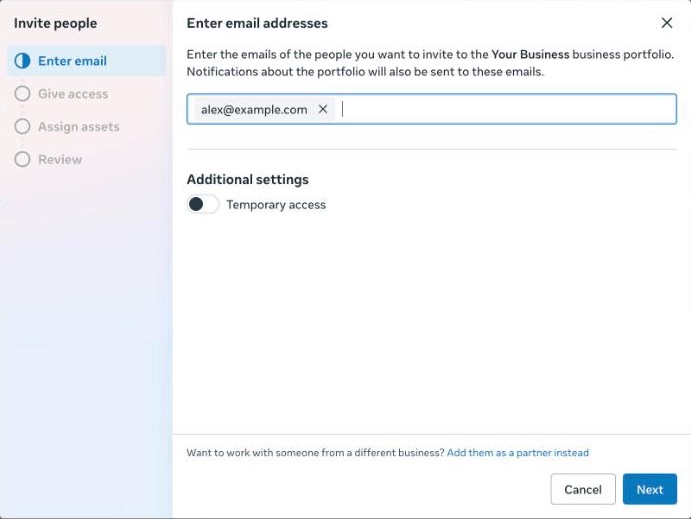
Click Invite people at the top right. Type the email address of the person you want to add, press Enter, then click Next.
 12
- 1Type the email address and press Enter
- 2Next
Choose partial access
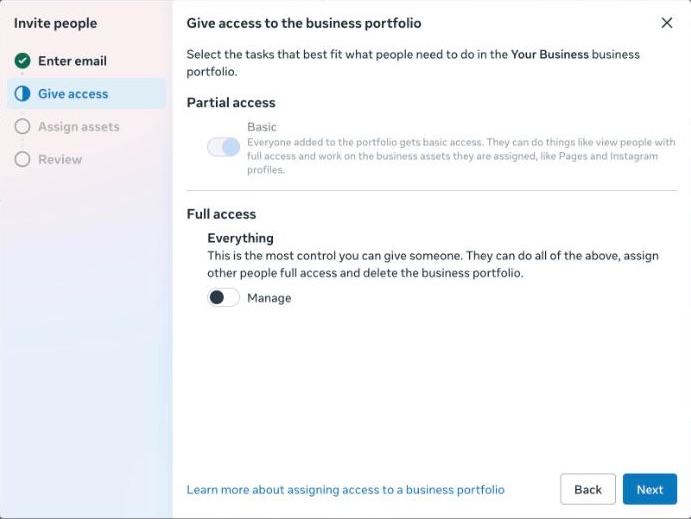
Under Partial access, Basic is already on. That lets them work on the Page and Instagram account you assign in the next step and nothing else in your business. Click Next.
 123
- 1Partial access: Basic is already on
- 2Full access: leave Manage off
- 3Next
Leave Manage under Full access switched off. Full access lets someone add people and even delete your business portfolio. Someone who runs your social media doesn't need it.
Assign your Page and Instagram account
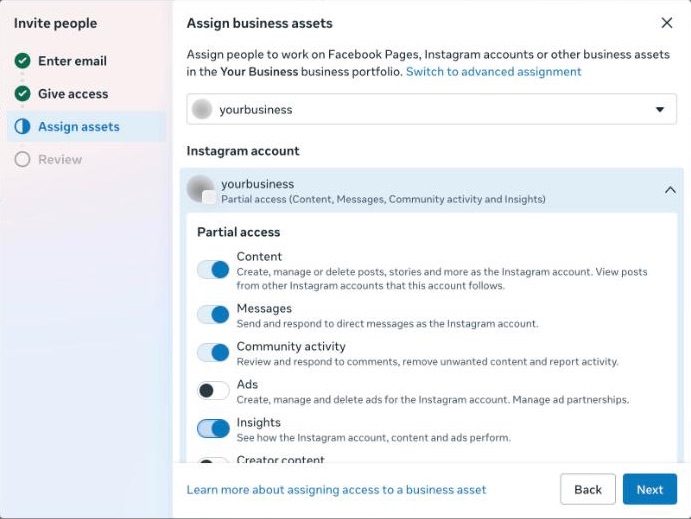
- Open Select business asset(s), tick your Facebook Page and Instagram account, and click Confirm selection.
- For each one, switch on Content, Messages, Community activity and Insights.
- Switch on Ads too if they will run ads for you. Then click Next.
 123
- 1Select your Page and Instagram account
- 2Switch on Content, Messages, Community activity and Insights
- 3Next
Instagram account missing from the list? It isn't connected to your business portfolio yet. Close the dialog, go to Business assets, then Instagram profiles, connect it, and start the invite again.
Review and send
Check the email address and the access listed. Then click Invite with 1 asset (the number matches how many assets you picked). They get an email from Meta and accept it. Their access starts as soon as they do.
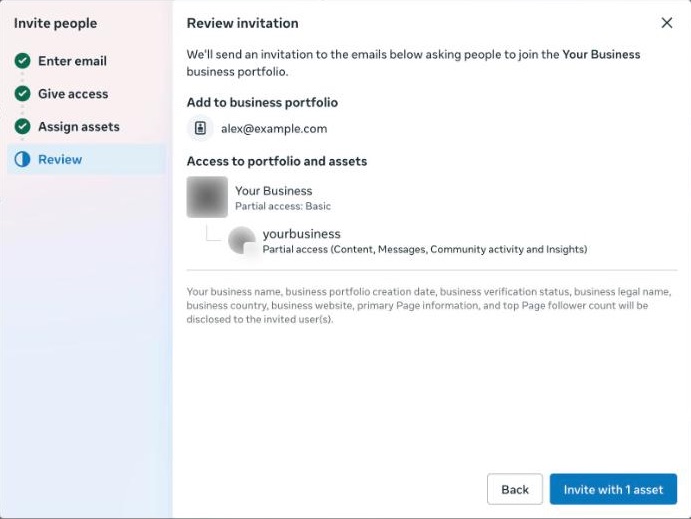 12
- 1Check the email and access
- 2Invite with 1 asset
What they can do
The access, in plain words
Content
Create, schedule and edit posts, reels and stories on your Page and Instagram.
Messages
Reply to DMs and Messenger chats from your inbox in Business Suite.
Community activity
Reply to and moderate comments on your posts and ads.
Insights
Read reach, engagement and follower numbers, so you can see what's working.
Questions
Before you send it
Can someone with partial access change my password or remove me?
No. With partial access, they can't change your business settings, remove people or see your login. You stay in control of the account.
How do I check the invite went through?
Go back to Settings, then People. The person shows as pending until the invite is accepted, then as active.
How do I remove access later?
Open Settings, then People, select the person and choose Remove. It takes effect straight away.
Should I share my Facebook or Instagram password instead?
No. An invite is safer, keeps your account secure and doesn't trigger Meta's login checks. No agency should ask for your password.
Stuck on a step? We'll walk you through it.
Send us a screenshot of where you are, or jump on a quick call and we'll finish it together.